
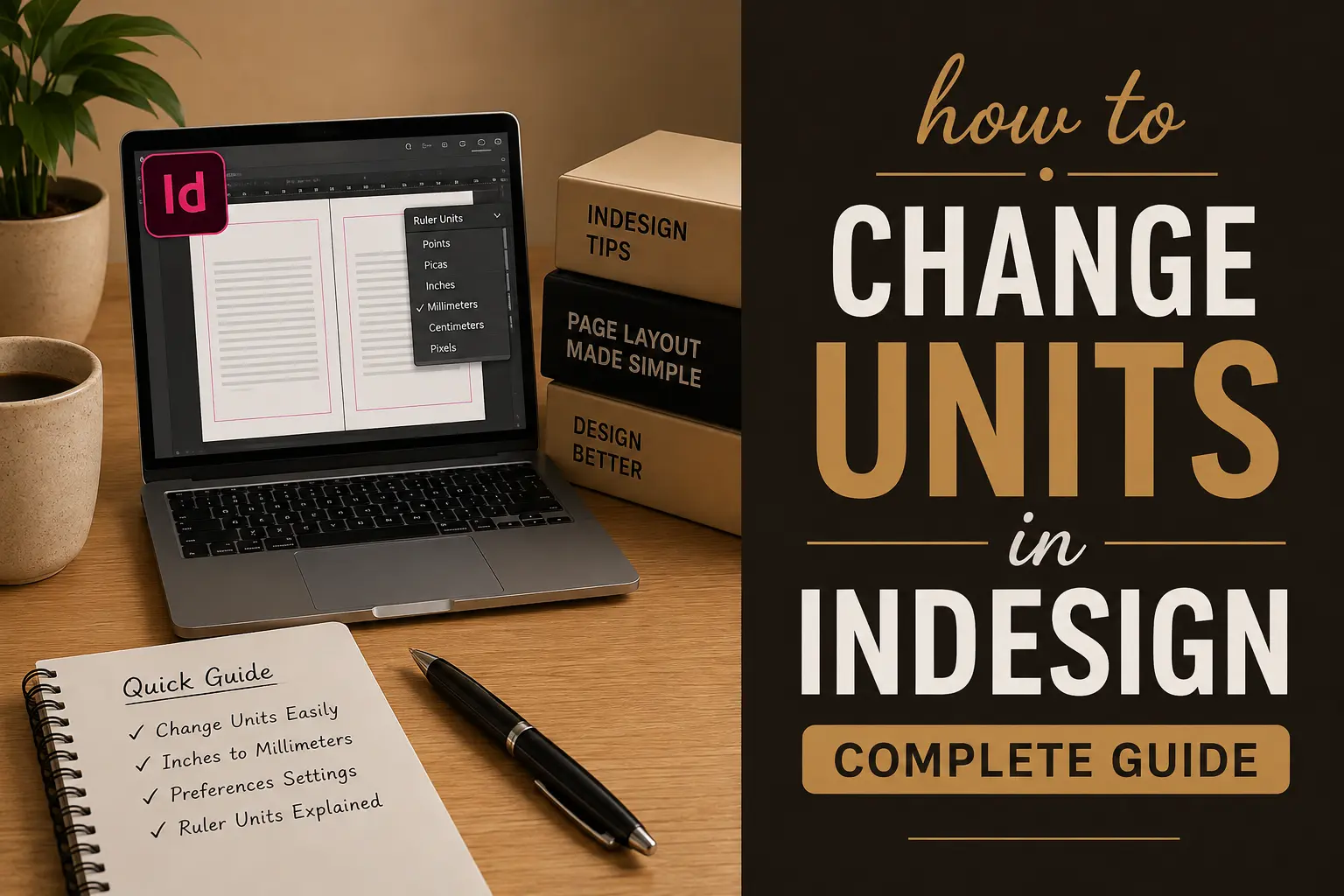
If you are working in Adobe InDesign and your measurements are showing in the wrong units, you can change them in just a few clicks.
InDesign lets you work with different measurement units, including inches, millimetres, centimetres, points, picas and pixels. Choosing the right unit can make your workflow much easier, especially when you’re designing books, magazines, brochures or other print projects.
In this guide, you’ll learn how to change units in InDesign, how to switch between inches and millimetres, and how to change the ruler units quickly while you’re working.
What Are Units in InDesign?
Units are used to measure the size and position of objects in your InDesign document.
For example, if you’re designing a book, you may want to work in inches. If you’re working with a printer that provides measurements in millimetres, you may find mm easier to use.
Some of the common measurement units available in InDesign are:
- Inches
- Millimetres
- Centimetres
- Points
- Picas
- Pixels
You can change these settings whenever you need to.
How to Change Units in InDesign
The easiest way to change the measurement units is through the Units & Increments preferences.
Step 1: Open Units & Increments
First, open your InDesign document.
On Windows, go to:
Edit → Preferences → Units & Increments
On Mac, go to:
InDesign → Preferences → Units & Increments
This will open the Units & Increments settings. Adobe’s current instructions use this menu to change the ruler measurement system.
Step 2: Choose Your Ruler Units
Under Ruler Units, you’ll see options for:
- Horizontal
- Vertical
Click the dropdown menu next to the measurement you want to change.
For example, you can select:
Millimetres (mm)
or
Inches (in)
You can use the same unit for both horizontal and vertical rulers if you want your document to be consistent.
Step 3: Click OK
Once you’ve selected your preferred units, click OK.
Your rulers and relevant measurement displays will now use the new unit.
Changing the ruler units changes how measurements are displayed; it doesn’t resize your existing objects or change their actual positions.
How to Change Units From the Ruler
There is a quicker way to change the ruler units without opening Preferences.
Right-click the ruler on Windows, or Control-click it on Mac.
You’ll see a list of available measurement units. Select the one you want to use.
This is useful when you’re working on a document and need to switch between inches and millimetres quickly.
How to Change Units When Creating a New Document
You can also enter your preferred measurement when creating a new InDesign document.
Go to:
File → New → Document
Then enter your required width and height.
For example, if you’re creating a standard letter-size document, you could enter:
Width: 8.5 in
Height: 11 in
If you’re working with metric measurements, you can enter the dimensions in millimetres instead.
InDesign can also recognise a unit when you type it directly into a measurement field. For example, you can type 2 in even if your document is currently displaying measurements in millimetres. InDesign will convert the value automatically.
Internal link: If you have a guide about setting up documents, this is a good place to link to How to Create a New Document in InDesign.
Can You Use Different Units in InDesign?
Yes.
You don’t always need to change your default document units before entering a measurement.
For example, if your document is set to millimetres but you need an object to be exactly 2 inches wide, you can simply type:
2 in
InDesign will convert the measurement for you.
You can also use unit abbreviations such as:
mm— millimetrescm— centimetresin— inchespt— pointspx— pixelsp— picas
This can be particularly useful when you’re working with specifications from different clients, publishers or printers.
How to Change Inches to Millimetres in InDesign
If your InDesign document is showing inches but you want to work in millimetres, you don’t need to create a new document.
Go to:
Preferences → Units & Increments
Then change the Horizontal and Vertical ruler units to Millimetres.
Click OK, and the measurements will be displayed in mm.
The same process works in reverse if you want to change from millimetres to inches.
How to Change the Ruler Origin
The ruler origin is different from the measurement unit.
The ruler origin controls where the zero point of your ruler starts.
If you need to move the zero point, use the small square where the horizontal and vertical rulers meet and drag it to the position you want.
This can be helpful when you’re measuring objects from a particular point on a page or spread.
Which Units Should You Use in InDesign?
The best unit depends on the type of project you’re working on.
Inches
Inches are useful for book formatting and many print projects, especially when your printer or publishing platform provides dimensions in inches.
For example, a book may have a trim size of:
6 × 9 inches
or:
8.5 × 11 inches
If you’re formatting books for KDP, you can check the current KDP trim size, bleed and margin requirements before setting up your document.
Millimetres
Millimetres are commonly used for print work when specifications are provided using the metric system.
They can be useful for brochures, flyers, business cards and other printed materials.
Points
Points are commonly used for typography.
For example:
10 pt body text
and:
18 pt heading
Points are especially useful when setting font sizes, leading and other text-related settings.
Picas
Picas are another traditional measurement system used in typography and page layout.
They are less common for everyday design work, but you may still come across them in professional publishing workflows.
Why Do My InDesign Units Keep Changing?
If your units appear to change unexpectedly, first check your Units & Increments settings.
It’s also worth checking whether you changed the ruler settings for the current document or your general InDesign preferences.
If you want to learn more about how InDesign handles ruler measurements, Adobe has a useful guide on changing ruler measurement units in InDesign.
Changing Units for Book Formatting
If you’re formatting a book, choosing the correct units at the beginning can make the rest of the layout much easier.
For example, if your book trim size is 6 × 9 inches, you can set your document to:
Width: 6 in
Height: 9 in
You can then set your margins, page numbers, headers and other layout elements using the same measurement system.
Internal link: This is a natural place to link to your article about How to Format a Book in InDesign.
If you’re preparing the book for KDP, remember that trim size, margins and bleed need to match the publishing requirements. KDP currently lists 6 × 9 inches as one of its common paperback trim sizes and provides specific requirements for books with bleed.
Internal link: You can also link How to Add Bleed in InDesign here if you have a related article.
Does Changing Units Change the Size of My Document?
No.
Changing the ruler from inches to millimetres doesn’t physically resize your document or your objects. It changes the way the measurements are displayed.
For example, the same measurement can be displayed in inches or millimetres without changing the actual size of the object.
This is useful when a client gives you specifications in one unit and you prefer to work in another.
Final Thoughts
Changing units in InDesign is a small setting, but it can make a big difference to your workflow.
Whether you’re working in inches, millimetres, centimetres or points, you can switch the measurement system whenever you need to.
The easiest method is to open Preferences → Units & Increments and select the units you want. You can also right-click or Control-click the ruler to change the ruler units quickly.
If you regularly work on books or print projects, it’s worth getting comfortable with switching between measurement systems. It will save you time when working with different client, printer and publishing specifications.
Frequently Asked Questions
How do I change units in InDesign?
Go to Edit → Preferences → Units & Increments on Windows or InDesign → Preferences → Units & Increments on Mac. Choose your preferred horizontal and vertical ruler units and click OK.
How do I change mm to inches in InDesign?
Open Units & Increments and change the ruler units from millimetres to inches.
Can I use inches and millimetres in the same InDesign document?
Yes. You can type a measurement followed by its unit, such as 2 in or 50 mm, directly into a measurement field. InDesign will convert the value automatically.
What is the best unit for book formatting in InDesign?
Inches are often convenient when working with book sizes such as 6 × 9 inches or 8.5 × 11 inches. However, the best unit depends on the specifications provided by your printer or publishing platform.
How do I change the ruler from inches to mm in InDesign?
Right-click the ruler on Windows or Control-click it on Mac, then select Millimetres. You can also change the setting through Preferences → Units & Increments.